
Video Screenshots to PDF
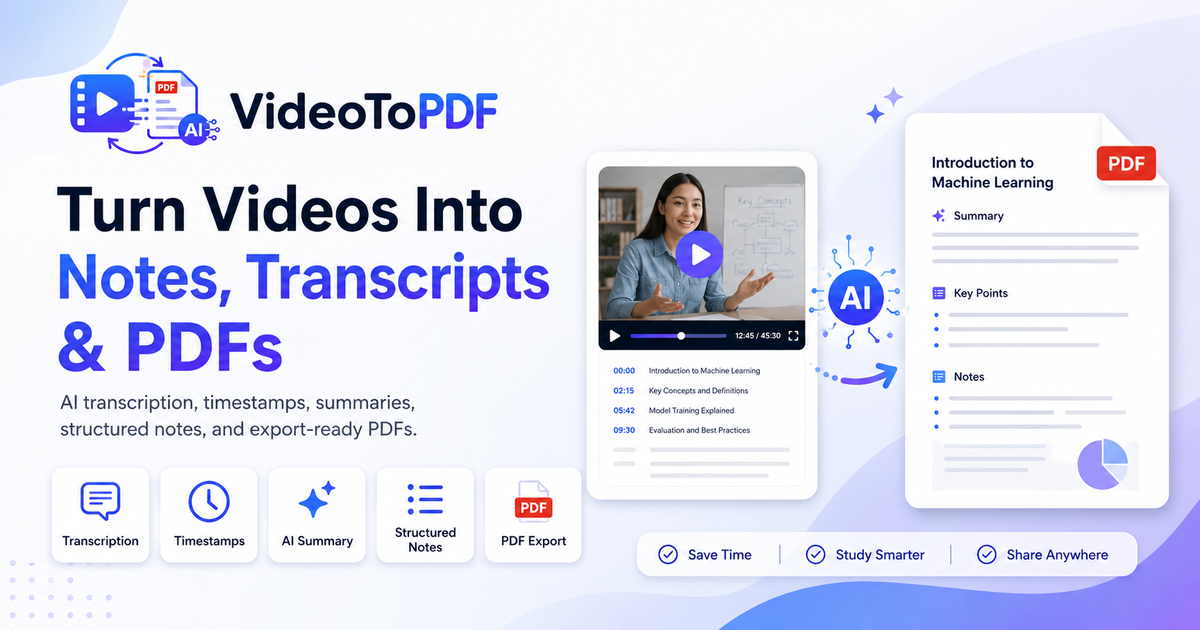
Extract meaningful screenshots from videos and combine them with timestamps, transcript notes and summaries in a PDF.
No software install. Supports MP4, MOV, WEBM, MP3 and more.
Recommended PDF mode
Includes screenshots or key frames with timestamps.
Files are private and can be deleted anytime.
How to Convert Video Screenshots to PDF
Upload your video
Add an MP4, MOV, WEBM or audio file from your device.
Choose transcript, notes or frames
Pick a PDF mode for searchable text, structured notes or visual screenshots.
Download your PDF
Export a clean document with timestamps, key points and selected visuals.
Screenshot PDFs are for selected moments, not raw footage
When people search for video screenshots to PDF, they usually want a compact visual record: slides, diagrams, UI states, whiteboard moments or tutorial steps. This page focuses on turning selected screenshots into a readable PDF with timestamps and supporting notes.
The difference from video frames to PDF is the user intent. Screenshots are usually handout-style captures of important moments, while frame extraction can be more systematic. This page is written for users who care about clean visual snapshots and a document that remains easy to scan.
Best fit: slide captures, whiteboard moments, tutorial screenshots and product walkthroughs.
Output style: screenshot-led PDF with timestamp labels, transcript context and summary.
Review workflow: select visual moments, remove duplicates, add context, then export.
See the PDF-ready workspace before you upload
Choose how you want to turn your video into a PDF: transcript-based notes, AI summaries, key screenshots, or frame-based visual pages.
Generated document
video-screenshots-example.pdf
Source
Video screenshots
Mode
Frames PDF
Output
Screenshot PDF
Transcript
timestampsPresenter: This slide shows the baseline metrics before the launch.
Presenter: Save this dashboard state as a screenshot for the PDF.
Presenter: The final visual compares the before and after workflow.
AI notes: This moment becomes a chapter marker with supporting context.
AI notes: The export keeps the final takeaway linked to the source timestamp.
Study notes
Summary
- Screenshot PDFs are compact visual records.
- They work well for slides, diagrams and walkthroughs.
- The output remains readable and searchable.
Capture visual steps from lessons and demos
Frequently asked questions
Can I save video screenshots as a PDF?
Yes. VideoToPDF can help turn key screenshots, timestamps and transcript notes into a structured PDF.
Will the PDF include every video frame?
No. It focuses on useful screenshots and context so the PDF stays readable.
Can I use it for screen recordings?
Yes. It is useful for software demos, tutorials, classes and other visual recordings.
Can I export transcript files too?
Yes. PDF, TXT, Markdown, SRT and VTT exports are available from your workspace.
How is this different from Video Frames to PDF?
Video Screenshots to PDF focuses on selected visual moments. Video Frames to PDF can describe a broader frame extraction workflow.
Can screenshots be combined with notes?
Yes. The most useful screenshot PDF pairs images with transcript snippets, timestamps and AI-generated context.